Conversion Postback Setup (S2S)
ClicksTracker tracks conversions server to server, with no conversion pixel. This guide covers both directions: the inbound conversion URL that your affiliate network calls when a sale lands, and the outbound postback ClicksTracker sends back to your traffic source so it can optimize.
Last updated
How S2S tracking works
On every click, ClicksTracker mints a unique click ID (a UUID) and writes it into the
offer URL wherever you put the {click_id} macro. Your affiliate network stores it
with the lead. When the user converts, the network calls your ClicksTracker conversion URL with the same
click ID, so the conversion is matched to the exact click that produced it, along with the campaign,
zone, device and geo captured on that click.
1. The inbound conversion URL
Affiliate networks report conversions to a single public endpoint. It is identified by your workspace UUID and takes the click ID, an optional transaction ID, and an optional payout:
Copy the exact URL, with your workspace UUID already filled in, from Settings → Tracking Setup in the dashboard. The endpoint is public (no login) and identifies your workspace by that UUID, so give the URL only to your affiliate networks. It accepts GET and POST, with the parameters in the query string or a form body, and answers with a short plain text line rather than JSON.
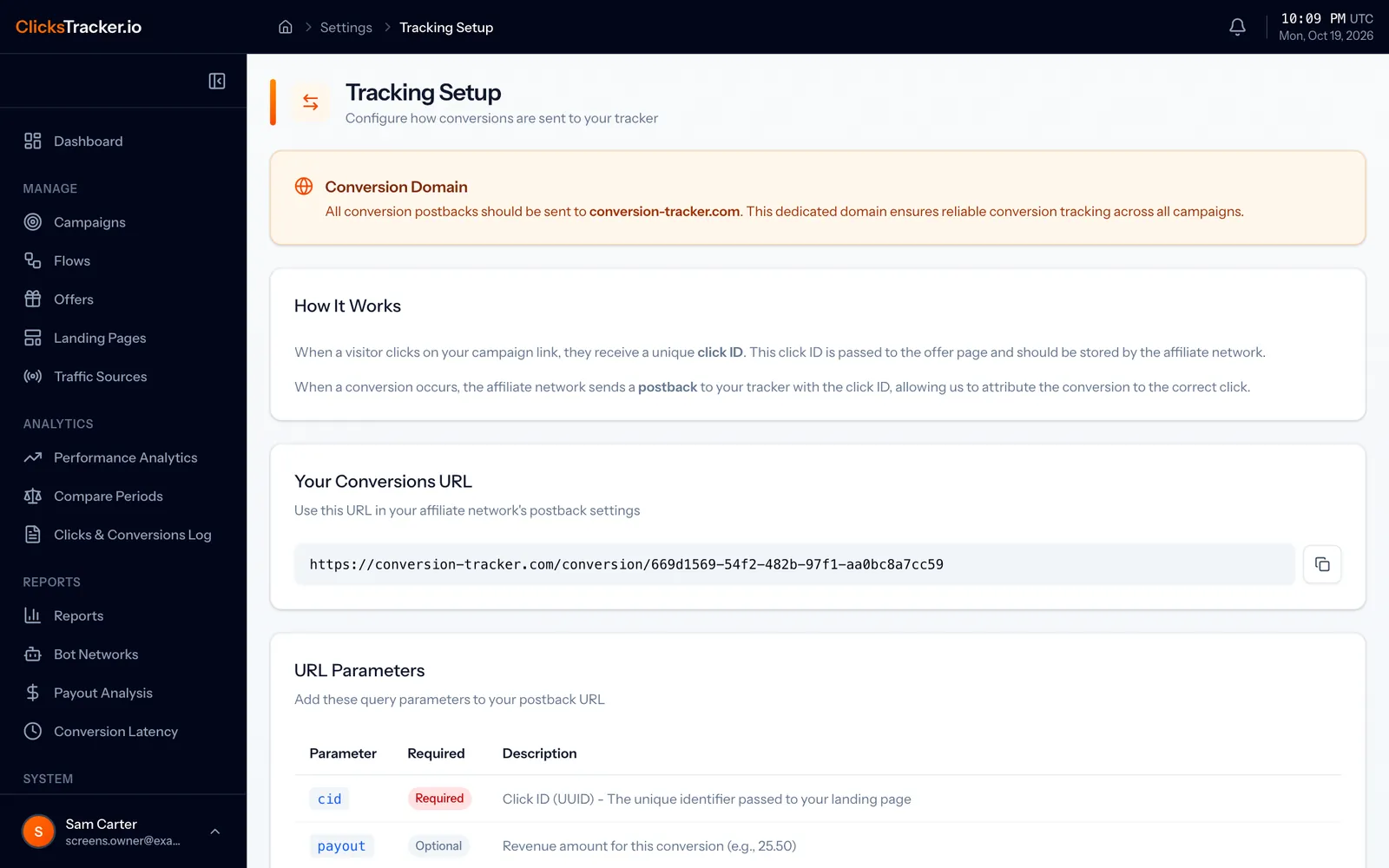
Query parameters
| Parameter | Required | Description |
|---|---|---|
cid | Yes | The ClicksTracker click ID. Must be a valid UUID. This is the value you forwarded to the offer on the click. |
tid | No | The network's transaction or order ID, up to 250 characters. It identifies one sale on the click. Without it, only the first postback for a click is recorded and a repeat is rejected with 409. With it, a tid the click has not seen yet is stored as an extra event that adds its payout, and the same tid sent again is rejected with 409. |
payout | No | Conversion revenue as a number (for example 12.50), recorded exactly as sent, with no currency conversion. Defaults to 0 when omitted. |
Response codes
| Code | Meaning |
|---|---|
200 | Accepted and queued. The conversion is recorded, and its outbound postbacks are sent, once the queue processes it. |
202 | The click has not reached the database yet (clicks are written in batches). The conversion waits in a pending queue, is retried with exponential backoff for up to 24 hours, and is matched automatically once the click lands. A well formed click ID that ClicksTracker never issued also gets a 202 and expires after those 24 hours. |
400 | An unknown or inactive workspace UUID, a malformed cid (not a valid UUID), a tid longer than 250 characters, or a negative or non numeric payout. |
404 | The part of the path after /conversion/ is not a UUID. |
409 | The same tid was already recorded for this click, or a postback without a tid arrived for a click that has already converted. |
429 | Too many requests, see the rate limits below. |
500 | Something failed on our side while queueing the conversion. A network that retries failed postbacks sends it again. |
The endpoint is rate limited per workspace and sending address (600 requests per minute by default, and 3,000 per minute for one sending address in total). Requests over the limit get a 429 and are logged; a network that does not retry loses that conversion. A 202 is normal and healthy: it just means the postback beat the click into the database, and ClicksTracker reconciles it once the click arrives.
2. Wire it up step by step
Copy your conversion URL
In the dashboard, open Settings → Tracking Setup and copy your inbound conversion URL. It already contains your workspace UUID.
Forward the click ID to your offer
Add the {click_id} macro to the offer URL, in the affiliate network's sub ID parameter, for example aff_sub={click_id} on CrakRevenue. ClicksTracker replaces it with the click's ID on every redirect, and the network stores it with the lead.
In the postback, map the network's macro for that sub ID back to cid. Settings → Tracking Setup has ready made templates for ten networks (CrakRevenue, LosPollos, ClickDealer, Zeydoo, Dr.Cash, AdCombo, LemonAD, Everad, MyLead and Mobipium): pick one and it shows both the offer link parameter and the postback URL with that network's macros.
Paste the URL into the network's postback field
Add the ClicksTracker conversion URL to your network's server postback (S2S) field. Map their tokens onto the parameters:
cid→ the click ID you passed through the offerpayout→ the sale amount or commission tokentid→ the transaction or order ID token
If the network sends a postback for every conversion status (pending, approved, rejected), set it to send approved conversions only: the conversion URL has no status parameter, so every postback it receives counts as a conversion.
Fire a test and confirm
Open one of your campaign links, then trigger a test conversion for that click from the network. A 200 response (or a 202 if you fired it seconds after the click) and the conversion in the Clicks & Conversions Log confirm the loop is closed. To take a test conversion out of your stats afterwards, paste its click ID on Manual Unconvert, with a reason if you want one on record; it takes up to 500 click IDs at a time.
3. Outbound postbacks to your traffic source
When a conversion is recorded, ClicksTracker can send a postback to your traffic source (ExoClick, PropellerAds and the others) so the network learns which click converted and can optimize delivery. Save the outbound URL on the traffic source's Postbacks tab, where it serves every campaign of that source, or on a campaign's own Postbacks tab; each takes up to 3 postbacks. The macros below are replaced with real values at send time.
{external_id} is the traffic source's own click ID, captured on the click via the eid parameter of your Campaign URL. That is the value the network needs back to match the conversion to its click.
When postbacks fire
The first conversion of a click fires both the campaign's and the traffic source's postbacks. A later event on the same click (a new tid) always fires the campaign's postbacks, and fires the traffic source's postbacks only when Send on Events allows it: each campaign says yes, no, or inherits the traffic source's own switch.
Delivery and retries
Each postback is sent as a plain GET with a 10 second timeout, and any 2xx answer counts as delivered. A delivery that gets another answer, or none, is tried 3 times, 60 seconds apart. An hourly retry picks up a failed delivery that still has attempts left, for up to 24 hours, and you can retry any failed delivery by hand: Postbacks in the System menu is the delivery log, where each entry shows the URL that was sent and the answer it got.
Available macros
| Group | Macros |
|---|---|
| Conversion | {click_id} {conversion_id} {transaction_id} {payout} {revenue} {event_count} {timestamp} {external_id} |
| Campaign | {campaign_id} {campaign_name} |
| Device & browser | {browser} {os} {device} {device_type} {device_brand} |
| Location | {country} {country_iso} {city} {isp} {language} |
| Custom variables | {v0} to {v9} (also available as {var0} to {var9}) |
{payout} and {revenue} are aliases for the same value, and the ten custom variables accept either the short {v0} or long {var0} form. Pick whichever your network expects. {event_count} counts the extra events stored for the click, and there is no macro for a conversion status. Only {campaign_name} is URL encoded; every other value goes into the URL as it is, so a custom variable that contains & or # changes the URL.
Two macro names mean different things in an offer URL and in a postback. The custom variables are numbered from one in the offer URL and from zero in the postback, so the value an offer URL gets as {v1} arrives in a postback as {v0}, and so on up to {v10} and {v9}. And {country} in an offer URL is the two letter ISO code (for example DE), while {country} in a postback is the English country name (Germany): use {country_iso} in a postback for the code.
4. Postback URLs for the integrated networks
Each integrated traffic source has its own postback URL. Create it in the network, then save it on the
traffic source's Postbacks tab; ClicksTracker fills {external_id}
and {payout}. Each network guide walks through the whole setup, from the click id
token to the first conversion.
| Network | Where to get it, and the URL |
|---|---|
| ExoClick tracking guide | Campaigns, Conversion Tracking: a goal of the type Conversion Tracking API (S2S). Its goal ID replaces YOUR_GOAL_ID.http://s.magsrv.com/tag.php?goal=YOUR_GOAL_ID&tag={external_id}&value={payout} |
| PropellerAds tracking guide | Tracking tab, Other tracker or CPA network. Your aid and tid replace YOUR_AID and YOUR_TID.http://ad.propellerads.com/conversion.php?aid=YOUR_AID&pid=&tid=YOUR_TID&visitor_id={external_id}&payout={payout} |
| Galaksion tracking guide | Campaigns, Postback. Your account id replaces YOUR_ID.http://postback.report/postback?cid=YOUR_ID&click_id={external_id}&price={payout} |
| Adsterra tracking guide | Conversion tracking, a custom tracker, GENERATE POSTBACK. Your Adsterra login replaces YOUR_USERNAME.http://www.pbterra.com/name/YOUR_USERNAME/at?subid_short={external_id}&atpay={payout} |
| TrafficStars tracking guide | Tracking Tools, a custom tracker, Generate. Your advertiser key replaces YOUR_ADVERTISER_KEY.https://tsyndicate.com/api/v1/cpa/action?clickid={external_id}&value={payout}&key=YOUR_ADVERTISER_KEY |
Related
Close the loop on every conversion
Set up S2S postbacks in ClicksTracker and track revenue back to the click.